


Want a simple, clutter-free way to stream HD content on your TV?

What is the Roku Streaming Stick HD 2025 — HD Streaming Device for TV with Roku Voice Remote, Free & Live TV?
You get a compact dongle that plugs directly into your TV’s HDMI port and brings Roku’s streaming platform to any compatible television. This model focuses on HD streaming, easy setup, and a streamlined experience with a Roku Voice Remote so you can search and control playback without juggling multiple remotes.
You’ll find the product emphasizes three core promises: simplicity, portability, and access to a wide range of apps including hundreds of free live channels. The device is designed to be unobtrusive—able to draw power from the TV USB port so you avoid extra cords and wall adapters when possible.
Key features at a glance
This section gives you the highlights in short, scannable form so you can quickly see what matters most. If you prefer a quick summary before reading deeper, these points will tell you what to expect.
- HD streaming up to 1080p resolution for a smooth, clear picture on most TVs
- Roku Voice Remote for voice search, power and volume control on compatible TVs
- Compact design that plugs into the back of the TV and stays out of sight
- Powered by the TV’s USB port in many cases — less clutter, fewer cords
- Access to top streaming apps plus 500+ free live TV channels and lots of free movies and shows
- Easy setup and a home screen that gets you to content quickly
Technical specifications
These are the basic specs and capabilities you’ll want to know when deciding if the device matches your needs. The table below summarizes the most relevant details in a single place.
| Feature | Details |
|---|---|
| Model name | Roku Streaming Stick HD 2025 — HD Streaming Device for TV with Roku Voice Remote, Free & Live TV |
| Video resolution | Up to 1080p HD |
| Audio | Stereo and common surround formats via TV; support varies by app and TV audio system |
| Remote | Roku Voice Remote (power, volume, voice search) |
| Connectivity | Wi‑Fi (typical Roku models support 2.4 GHz and 5 GHz bands), HDMI output |
| Power | Can draw power from TV USB port or included power adapter if needed |
| Special content | 500+ free live TV channels and access to major streaming apps |
| Size | Compact HDMI stick form factor; plugs into back of TV |
| Ideal for | HD TVs and users who want a simple, low-cost streaming upgrade |
You’ll notice the emphasis on a compact design and simple connectivity. If you need 4K or advanced TV features like Dolby Vision, you’ll want to compare this with higher-tier Roku models, but for HD TVs this stick covers the essentials well.
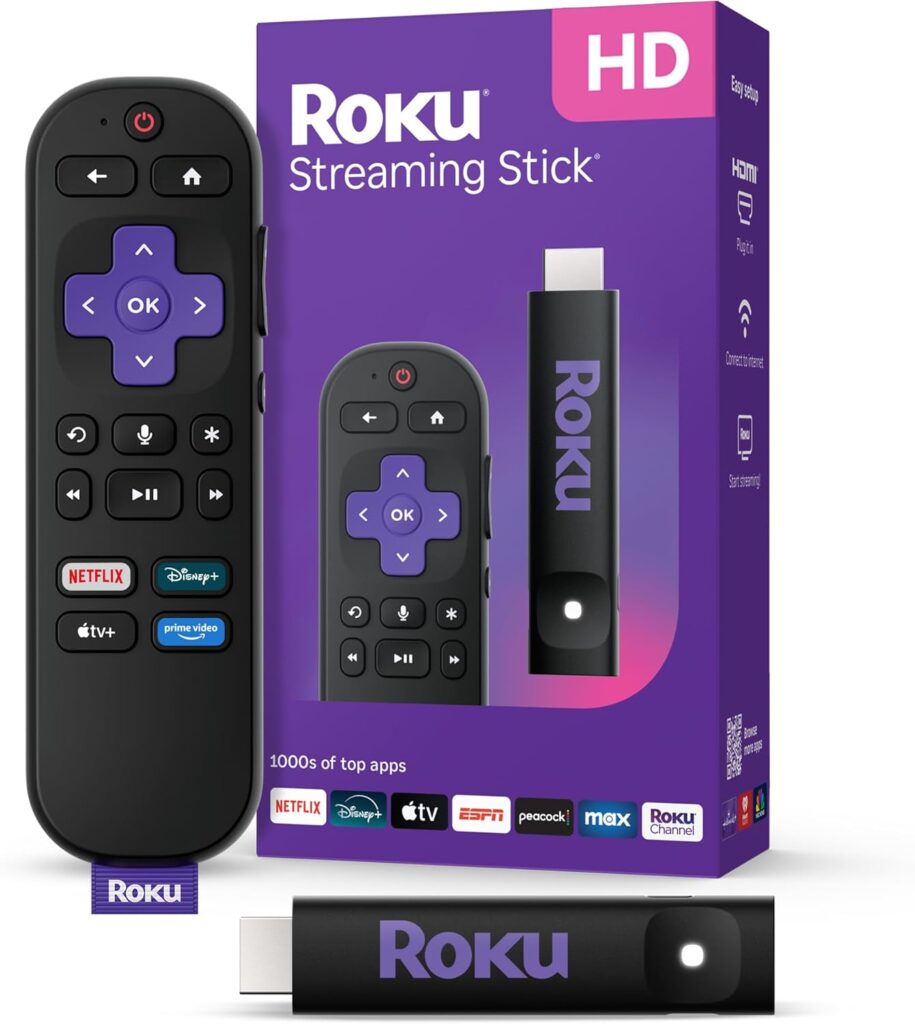

Design and build
The Roku Streaming Stick HD 2025 has a slim, unobtrusive form factor that’s meant to sit behind your TV and remain hidden from view. You’ll appreciate that it’s small enough not to block neighboring HDMI ports on most TVs, and the flexible HDMI connection helps with tight TV mount setups.
The plastic shell feels lightweight but solid, and Roku’s design language is simple and functional rather than flashy. Because it’s designed to be powered by the TV’s USB port when possible, you’ll often avoid a visible power brick and maintain a cleaner entertainment center.
Setup and installation
Setting up the device is intentionally straightforward so you can start streaming without fuss. You simply plug the stick into an available HDMI port, connect the USB power to your TV or to the included adapter if your TV USB can’t supply enough power, select the matching HDMI input, and follow the on-screen prompts to connect to your Wi‑Fi network and sign in or create a Roku account.
You’ll be guided through a short, friendly setup routine that includes software updates and app suggestions. If you travel, the stick is easy to bring with you: plug it into another TV and connect to your home Roku account or use it as a fresh device while on the road — you won’t need to sign into someone else’s device.
Step-by-step quick setup tips
You’ll save time and frustration by following a few simple steps: make sure your TV is on the right HDMI input, use the TV’s USB for power first to avoid a wall adapter, and have your Wi‑Fi password handy so you can complete the connection quickly. If the stick doesn’t power on, switch to the included power adapter since not all TV USB ports deliver steady power.
If the remote doesn’t pair automatically, hold the pairing button inside the battery compartment until the remote’s light flashes and follow the on-screen pairing instructions. These small checks usually resolve the most common installation hiccups.
Remote and voice control
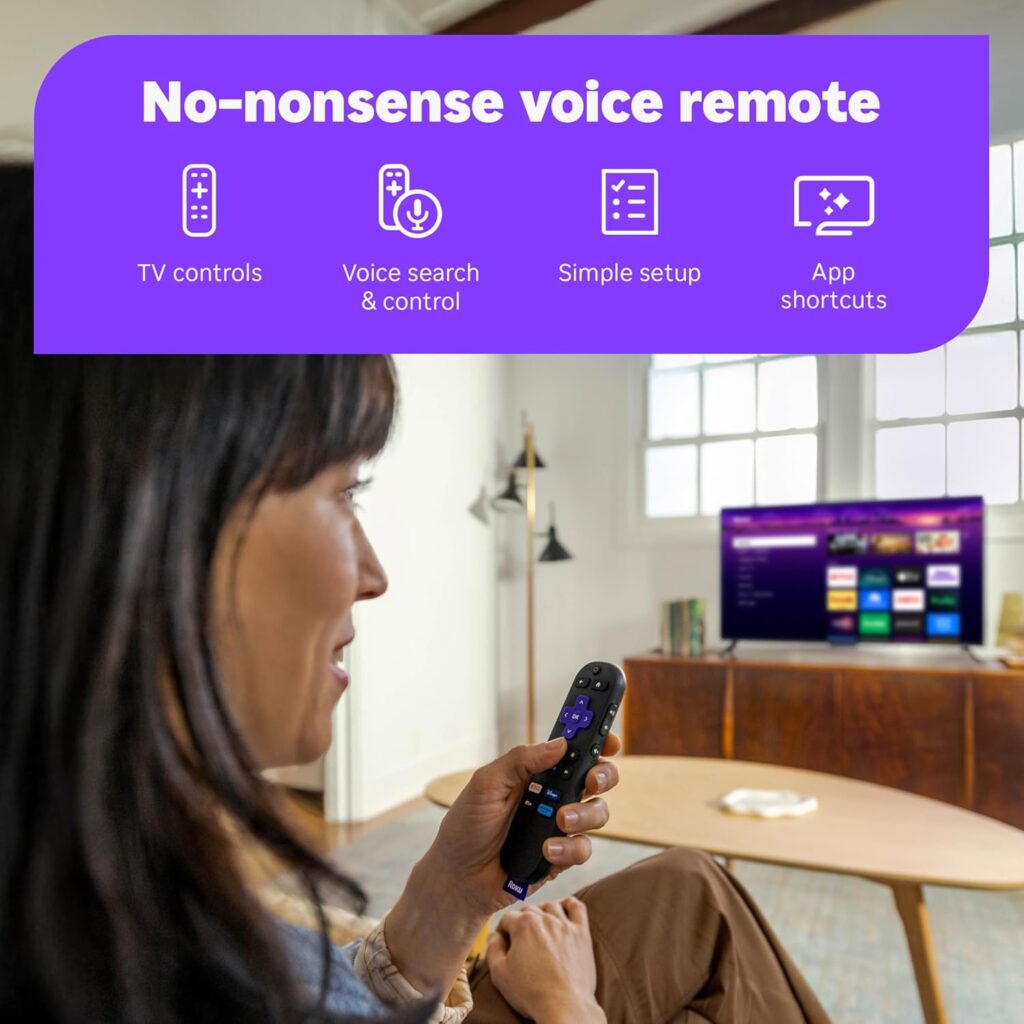
The Roku Voice Remote included with this Streaming Stick HD 2025 simplifies control by combining power, volume, and voice features into one controller. You’ll be able to power some TVs on and off, adjust the TV volume, and use voice commands to search for titles, launch channels, and control playback.
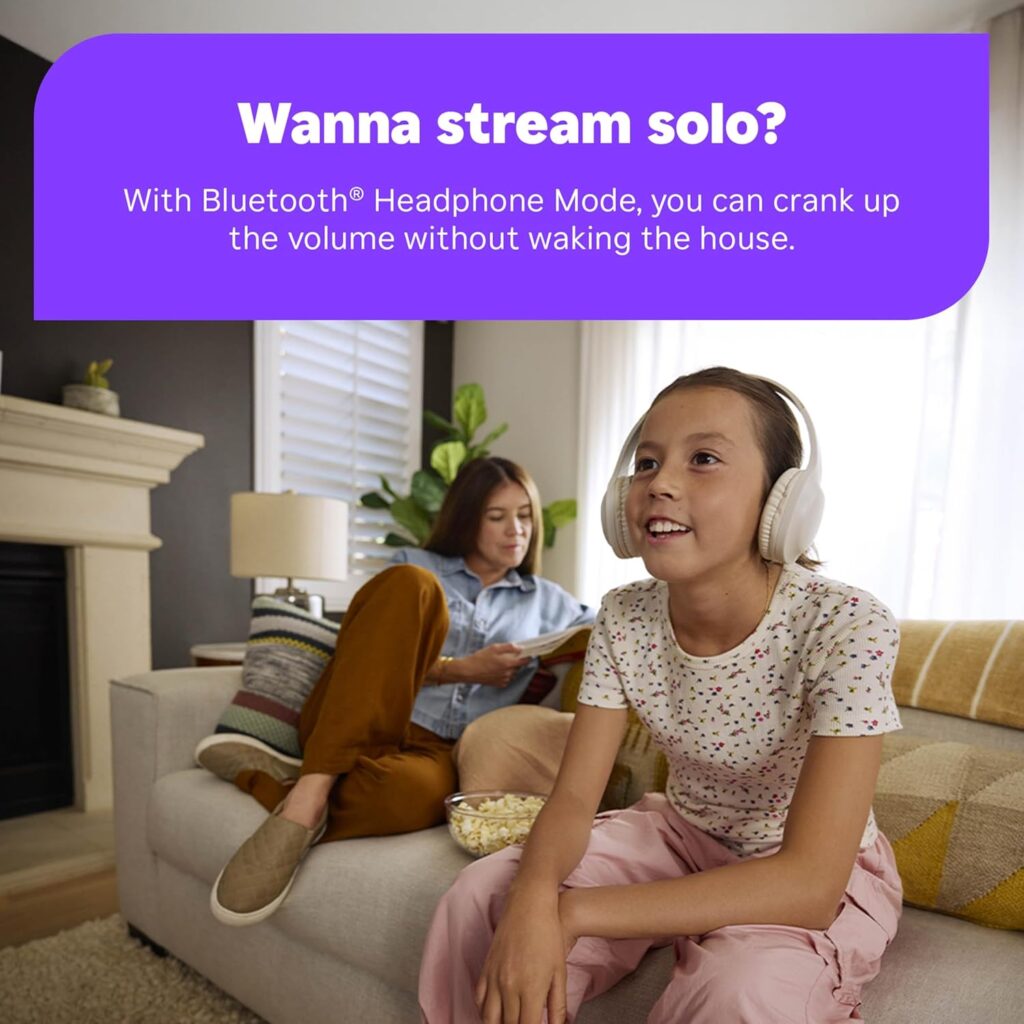
The voice mic button works with Roku Search, which helps you find movies and shows across many channels by speaking instead of typing. If you prefer private listening, you can also use Roku’s mobile app to route audio to headphones connected to your phone.
Remote ergonomics and battery life
The remote is comfortable to hold and laid out logically, with a central navigation pad and quick-access buttons for Home, Back, and commonly used apps. Batteries typically last months depending on use, so you won’t be changing them frequently, and there’s a simple pairing procedure if you ever need to re-sync the remote with the stick.
If your TV supports HDMI-CEC, the remote’s power and volume commands may work automatically; otherwise you can manually program TV controls during setup. This single-remote approach cuts down on clutter and makes everyday TV use smoother.
User interface and home screen
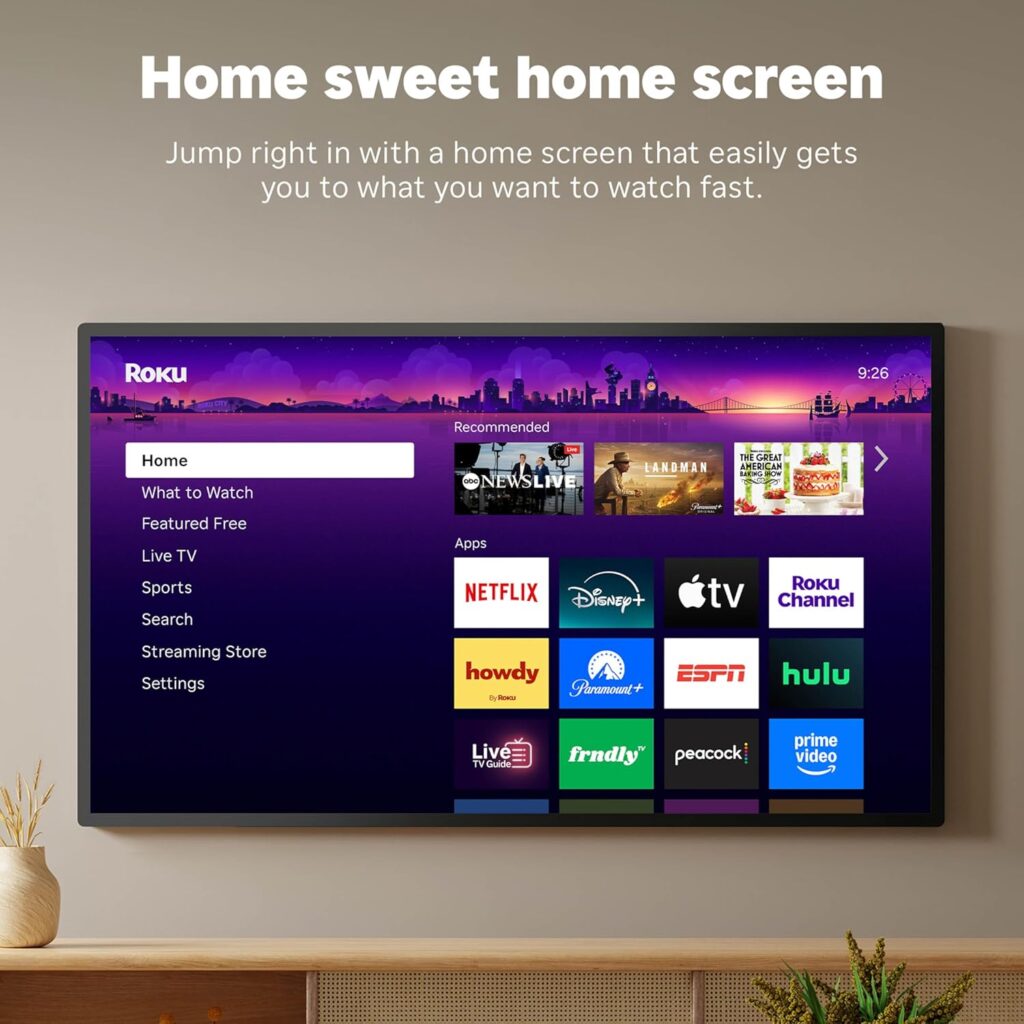
Roku’s user interface is known for being clear and uncluttered, and this device keeps that same approach so you can find what you want quickly. The Home screen prioritizes your installed channels, shows recommendations, and highlights free and live content sections so you can jump right into entertainment without hunting.
You’ll notice that channels are organized in a grid you can customize and reorder, and Roku provides universal search results across multiple channels so you’re not opening apps sequentially to find a show. The OS is intentionally simple, which helps you spend more time watching and less time navigating menus.
Apps and content availability
With Roku’s platform you’re getting access to virtually every major streaming service and most niche apps, so chances are the services you use are supported. You can install apps for Netflix, Prime Video, Disney+, Hulu, YouTube, and many more; there’s also a sizable library of free, ad-supported channels.
You’ll also find specialty apps for sports, news, and music, and the channel store contains both major subscription services and casual streaming options. If you rely on a particular service, it’s a good idea to confirm availability in your region, but Roku typically lists most mainstream providers.
Top apps and services to check
Roku’s catalog includes the big names and plenty of free ad-supported options, so you’ll have flexibility in how you subscribe and watch. Check for apps you already use first — then browse the free channels section to find complementary content that doesn’t cost extra.
If you like local news and live events, the free live TV channel lineup can fill gaps that subscription services don’t cover. The system also supports account sign-in for personalized recommendations and watch lists when you sign into individual apps.
Free and live TV experience
One of the big selling points is Roku’s aggregated free live TV offering, which includes 500+ channels of news, weather, sports, and entertainment without a subscription fee. You’ll find a live TV guide that lets you scroll channels and see current broadcasts much like a traditional cable guide.
This free content is a combination of over-the-air style channels presented via the internet and ad-supported streaming networks. If you watch a lot of live news or want easy access to sports highlights and local updates, this feature can be a real value-add.
How the live TV guide works
The live guide lists channels and current programming in a familiar grid format, and you can tune into free channels with a single click. You’ll see a mix of continuous live channels, scheduled programming, and on-demand content; the experience is tuned to be straightforward and similar to conventional TV but without monthly fees.
Keep in mind that the exact channel lineup can shift over time and may vary by region, but Roku regularly adds new free channels and partners to expand the selection.
Picture and audio quality
This Roku stick is tailored for HD 720p/1080p TVs and provides a reliable picture at those resolutions. If your TV supports Full HD, you’ll get crisp, consistent playback, but if you expect 4K or advanced HDR features you’ll need a higher-tier Roku product that explicitly supports those formats.
Audio quality is largely determined by the TV or external sound system you use, and the device will pass typical stereo and surround streams through your TV. For users with soundbars or AV receivers, HDMI audio routing and TV settings will affect the final listening experience; the stick itself is focused on delivering solid streaming rather than advanced audio processing.
Performance considerations for streaming quality
Streaming quality depends on three main factors: the app’s available bitrate, your home internet speed, and the wireless connection stability. You’ll get the best results on a stable 5 GHz Wi‑Fi band with adequate bandwidth; otherwise the player will adapt bitrate to keep playback smooth, which can reduce visual sharpness during congestion.
If you consistently experience buffering or artifacting, try moving your router closer to the TV, switching bands, or using an Ethernet adapter (if supported by your TV) to give the stick a more dependable connection.
Network performance and streaming reliability
In everyday use you’ll find the Roku Streaming Stick HD 2025 reliable for the majority of streaming tasks, provided your network is healthy. The device uses standard Wi‑Fi technologies to connect to your home network and will manage adaptive streaming automatically to prevent interruptions.
You should expect shorter load times and fewer buffering events on a fast, modern router. If you share heavy network traffic with other household devices (gaming, large downloads), scheduling usage or upgrading your internet plan can help maintain smoother streaming.
Tips to improve network stability
If you want more consistent streaming, choose the 5 GHz band when possible to avoid 2.4 GHz crowding, minimize distance and obstacles between router and TV, and reduce concurrent heavy bandwidth uses on your network. Occasionally rebooting the router or the Roku device can clear transient issues and restore normal performance.
If you move the stick between networks regularly (for travel), you’ll need to reconnect it to the local Wi‑Fi each time and confirm app sign-ins, which is quick but worth planning for.
Portability and travel use
Because the stick is compact and draws minimal power, you can take it with you on trips and plug it into hotel TVs or friends’ televisions for a familiar streaming environment. You’ll avoid logging into someone else’s profile by using your own Roku device, and your apps and settings travel with the stick after you sign into your network.
Just remember that hotel or public networks sometimes block streaming or require browser-based login portals that the stick can’t handle, so bringing a mobile hotspot or verifying network policies in advance helps prevent surprises.
Practical travel checklist
Pack a small HDMI extension or adapter if hotel TVs have cramped ports, bring the power adapter if the TV USB port doesn’t supply power, and have a record of your Roku account credentials in case reauthentication is required. With those small preparations, you’ll have near-seamless access to your favorite apps away from home.
Power and cable management
The stick’s ability to draw power from the TV USB port means fewer visible cables and a nicer-looking setup behind the TV. You’ll typically tuck the device behind the TV and leave the power cable discreetly routed, which is ideal if your entertainment area is minimal or mounted on a wall.
If your TV’s USB port won’t provide sufficient power, the included power adapter gives you a fallback option. This keeps the experience smooth without cluttering your power strip with bulky adapters.
Pros and cons
Laying out strengths and drawbacks will help you decide if this Roku is the right fit for your needs. The good news is that this model emphasizes simplicity and affordability while supporting most streaming essentials.
Pros:
- Affordable and focused on HD streaming for everyday viewing
- Compact design that doesn’t block adjacent HDMI ports
- Roku Voice Remote consolidates power and volume control
- Easy setup and clean cable management using TV USB power when available
- Large selection of apps plus 500+ free live channels
Cons:
- No 4K or HDR support, so not ideal for owners of 4K TVs who want ultra-high resolution
- Advanced audio formats and features depend on your TV or receiver rather than the stick
- Performance depends on your home Wi‑Fi; heavy network congestion can affect playback
Comparison with other Roku models
When you compare this stick to higher-end Roku models, the biggest differences are in resolution support and processing power. If you have a 4K TV and want the best possible picture with HDR and faster app load times, a Roku Streaming Stick 4K or Roku Ultra will be more suitable.
For users with HD-only TVs or those who want a simple, affordable way to add smart features to a secondary TV, this Roku Streaming Stick HD 2025 often hits the sweet spot. It’s cheaper and smaller than top-tier models but retains the essential Roku experience.
How to choose between Roku models
Choose this HD stick if your TV maxes out at 1080p or you primarily stream services that don’t require 4K. Consider a 4K Roku if you have a 4K TV and plan to use high-resolution streaming or gaming that benefits from lower latency and higher processing power.
Also weigh features like Ethernet adapters, USB ports, remote audio, and TV tuner compatibility if those are important to your setup — higher-tier models add capabilities that matter for power users.
Ideal users and use cases
You should consider this device if you want an affordable, simple streaming solution for an HD TV, a bedroom set, or a travel companion. It’s ideal for casual streaming, families who rely on free content and mainstream apps, or anyone who wants a straightforward way to modernize an older HDTV.
If you heavily prioritize 4K content, gaming, or advanced audio setups, this device may not meet those specialized needs and you’ll likely benefit from a more powerful Roku model. For everyday TV watching, though, it’s an excellent match.
Tips and tricks to get the most out of your Roku Streaming Stick HD 2025
You’ll get more enjoyment from the device by customizing and optimizing it for your habits. Keep your frequently used channels first on the Home screen for quicker access, use Roku’s search to compare content availability across apps, and enable automatic software updates to stay current with bug fixes.
Use the Roku mobile app for private listening, voice control, and a convenient keyboard for entering long passwords. You can also set up a simple watchlist or use streaming service watchlists to pick up where you left off across devices.
Customization and accessibility tips
You can rearrange channels, hide infrequently used apps, and adjust display settings to suit your TV and viewing preference. Roku also includes accessibility features like closed captions and screen reader support, which you can enable in settings if needed.
If you want to reduce data usage, many apps have streaming quality settings you can adjust; lowering bitrate slightly will help if you’re on a limited plan or have inconsistent bandwidth.
Common issues and troubleshooting
Most problems are simple to resolve and don’t require technical support, but it helps to know the common fixes. If the stick won’t power up, check the USB power source and try the included wall adapter; if streaming stutters, switch to the 5 GHz band or reboot your router and the Roku device.
If an app crashes or behaves oddly, try removing and reinstalling the app, check for Roku system updates, and ensure the app supports the device’s HD-only capabilities. For remote pairing issues, replace batteries and use the remote pairing button to re-sync.
When to contact support
If you’ve tried power cycling, software updates, and app reinstalls and still experience persistent hardware behavior like failure to power on or a device that won’t connect to any Wi‑Fi networks, contact Roku support or your retailer for warranty and service options. They can walk you through diagnostics or handle a replacement if needed.
Security and privacy considerations
You’ll want to use a secure Wi‑Fi network and keep your Roku account credentials safe, because apps and account sign-ins can store personal preferences and billing information. Roku also provides settings to manage advertising preferences, limit data sharing, and control device access.
If you share the device with roommates or family, you can sign out of individual apps rather than sharing account credentials. Periodically checking the device for unauthorized channels and reviewing account devices in your Roku account helps keep things tidy.
Frequently asked questions (FAQ)
You probably have a few quick questions about this product, and these answers cover the most common ones. If your question isn’t listed, checking Roku’s online help or the included quick start guide often provides a fast answer.
- Will this work on any TV with an HDMI port? Yes — as long as your TV has an HDMI input and a compatible resolution, the stick will connect and display.
- Do I need the wall power adapter? Not always; many TVs provide enough power through their USB ports, but some TVs don’t, so the included adapter is a useful backup.
- Can I use the Roku app as a remote? Yes — the Roku mobile app replicates remote functions, provides a keyboard, and offers private listening.
- Does it require a Roku account? Yes, you’ll sign in or create a Roku account during setup to access the channel store and personalized features.
Final verdict
If you want a friendly, no-fuss streaming upgrade for an HD TV, the Roku Streaming Stick HD 2025 — HD Streaming Device for TV with Roku Voice Remote, Free & Live TV gives you the core Roku experience at a reasonable price. You’ll appreciate the compact design, combined TV power and volume control, and the large selection of free and paid content that Roku brings to the table.
For users who need 4K or specialized audio features, consider stepping up to a higher-end Roku model, but for everyday HD viewing, portability, and minimal clutter, this stick is a great choice that makes streaming simple and enjoyable.
Disclosure: As an Amazon Associate, I earn from qualifying purchases.


